
Preserve and pass SEO authority with simple WordPress redirects.

Quick Summary of Contents
If you operate a website long enough, then you’re likely to encounter a situation or circumstance that requires a redirect at some.
What are redirects, you ask?
Simply put, redirects are primarily used to preserve the SEO authority of a website page or an entire website.
And here’s why redirects are important:
You don’t want to lose invaluable SEO authority. You’ve slaved so many days writing and sharing content to be crowned by Google with page one search rankings, right?
That’s right! You can redirect the SEO authority of a page, or an entire website, especially expired domains, from an old domain to a new one.
And this redirection we speak of occurs using either a permanent (301) or temporary (302) redirect.
I won’t touch on or dive into 302 redirects, but they operate the same as 301 redirects, only temporary instead of permanent.
You’re likely hoping that 301 redirects for your web page or domain name are as simple as bolding or underlining text in Microsoft Word.
The good news is that redirecting WordPress pages and entire websites can be done in the following ways:
- Web host forwarding
- .htaccess file
- WordPress Plugin
I’ll share with you how and when each option above is the most appropriate.
Redirecting traffic with web host forwarding.
One of the easiest ways to redirect a URL is using your web host’s forwarding service.
Most web hosting providers, such as GoDaddy, Bluehost, and HostGator, provide an easy-to-use interface that simply allows you to forward domains.
This interface domain forwarding typically allows for 301 (permanent) or 302 (temporary) domain redirects. Below is a screenshot from GoDaddy’s forwarding form in the Manage DNS section for a given domain.
It allows both http:// and https://, permanent and temporary forwarding, forward only and forward with masking, and nameserver and DNS update.
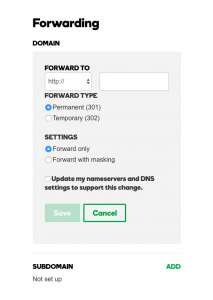
It’s easy to set up domain redirects, and it only takes minutes for updates to take and begin forwarding.
I recommend this approach for new domains not associated with websites indexed by search engines.
Using masked or unmasked forwarding is best for domain portfolios that forward secondary domains to a primary address.
Don’t forget to advantage of Google Analytics tracking when forwarding too.
The good ole’ .htaccess file redirect.
Before you ask me what a .htaccess file is, let me be the first to say that modifying a .htaccess file is not for the faint of heart or a person that fat-fingers their way through life.
In fact, a number of my customers took it upon themselves to *slightly* modify the .htaccess file only to take their website down.
If you will modify the .htaccess file under any circumstance, do yourself a favor and back up before you do!
If you need help modifying and redirecting a page URL or an entire domain, then check out this beginner’s guide to .htaccess for hands-on assistance and tutorials.
.htaccess redirects, both 301 and 302 redirects, can be quite simple, or they can get real hairy logic. If you need additional .htaccess redirect samples, then feel free to purchase my book with examples: Practical SEO made easy for You.
.htaccess redirects are good, but only when they work. 😉
If you operate a WordPress website, like 80% of the world, then the most simple way to redirect page URLs and domains in their entirety is by using a plugin.
Yes, I know there are quite a few WordPress plugins to choose from, but the one I use and recommend to customers with WordPress websites is Simple 301 Redirects.
It’s a simple and intuitive interface that allows you to enter an old (Request) URL and redirect it to a new URL (Destination).
It also allows for more complex redirects with the use of wildcards to handle more advanced and pesky dynamic data (i.e., dates, dynamic query strings, and more).
Last but not least, I encourage you to watch a quick tutorial showing you how to make good use of this WordPress plugin within your website.
Let me know if you have any questions/comments by leaving me a comment below.
Also, don’t forget to subscribe to our YouTube channel so you’re notified when our next tutorials are posted hot off the press!