

Quickly Check Domain Availability Using Easy Command Line Interface.

Today’s tutorial is not really anything to write home about, but it could save you a bit of time.
And if not save you time, then you’ll certainly learn how to check the availability of a domain name using a method other than a web browser.
You’ll certainly love these two methods if you check as many domains during a given day as I do.
I’ll share with you how to use Mac’s Terminal first. For Mac users, it’s quite simple to check a domain’s availability. Simply open Terminal and type “whois domain.”
Be sure to replace “domain” with the domain you want to check the availability of, as shown below in the Terminal image when checking the availability of alvinbrown.in.

Hit the “Enter” key, and the domain’s availability will be displayed as shown in the image below. The information displayed is in regard to the registry information.
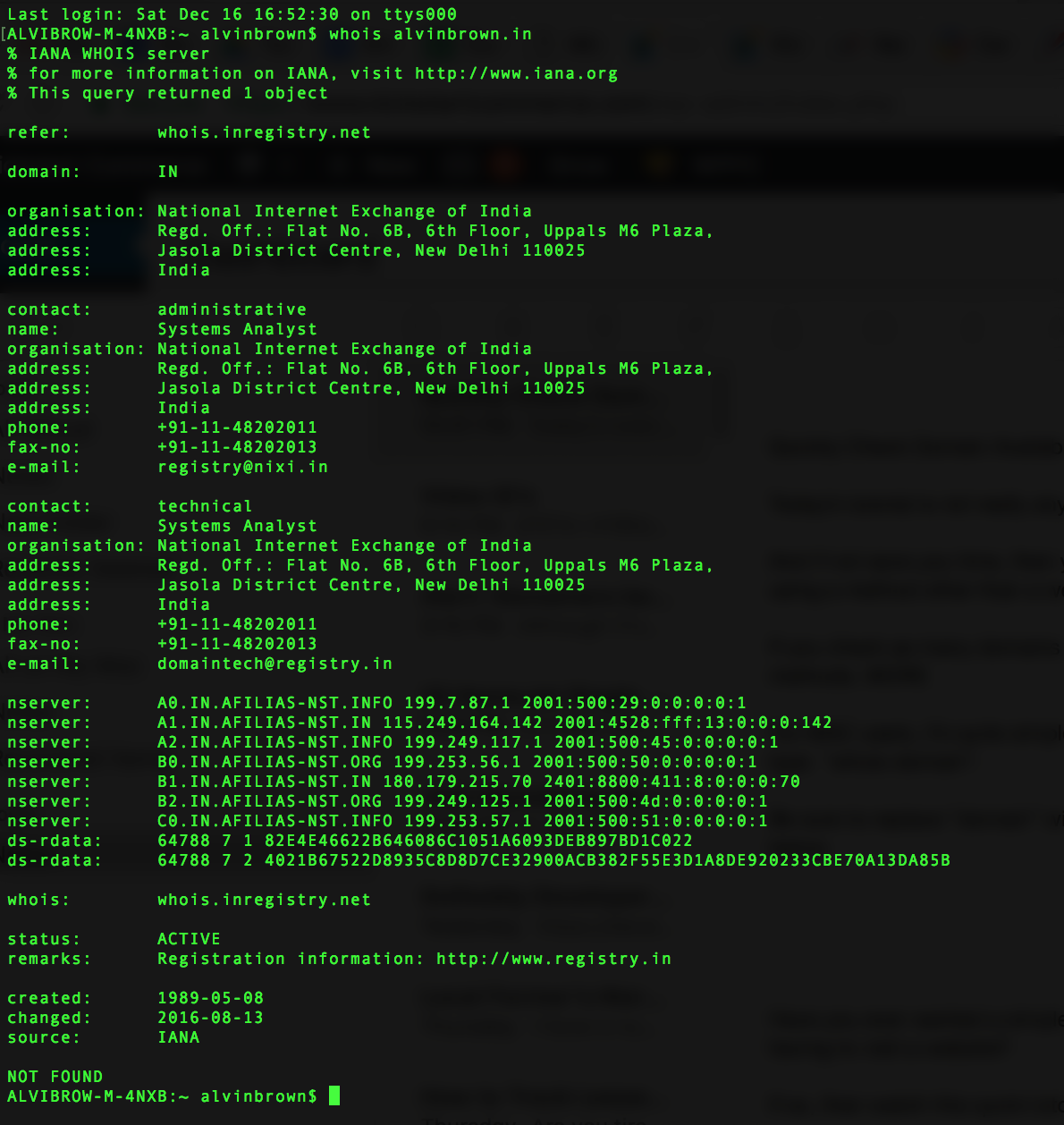
Look at the very bottom of the image and notice the words “NOT FOUND.” This means the domain is not registered and is available for hand registration.
If the domain were registered, then you’ll likely see a page like the following:

Of course, you’ll have to scroll down the page a bit just after the registry information. What you’re in search of are three things to note in and about the image above:
- Updated Dated
- Creation Date
- Registrar Registration Expiration Date
When a domain has these three things associated with it, it is said to be registered and unavailable.
And there you have it! It’s just as simple as checking the availability of a domain name using a Mac’s Terminal application.
Next up is checking the availability of a domain name using a Windows machine. Because I’m not a Windows user, I won’t dive into the nitty gritty details.
Nevertheless, Whois makes it quite easy for Microsoft users to check the domain availability using Windows Sysinternals.
Simply download this easy-to-use tool and ensure it’s executed within the C:\Windows\ directory.
Just as Mac users did with the Terminal application, type “whois domain” into the Windows Sysinterals command line interface.
Don’t forget to replace “domain” with the domain you want to check availability.
And believe it or not, but that’s it! Checking the availability of a domain name has never been made easier, with the exception of using a web browser, of course. 😉
In closing, I’ve created a quick step-by-step tutorial to show and share how to use Whois for both Mac and Windows users to check the availability of a domain name.
Let me know if you have any questions about command line interfaces for Mac or Windows or general domain name questions/comments. That’s all for now!